 Restore Old Photos
How to restore old photos on a Mac
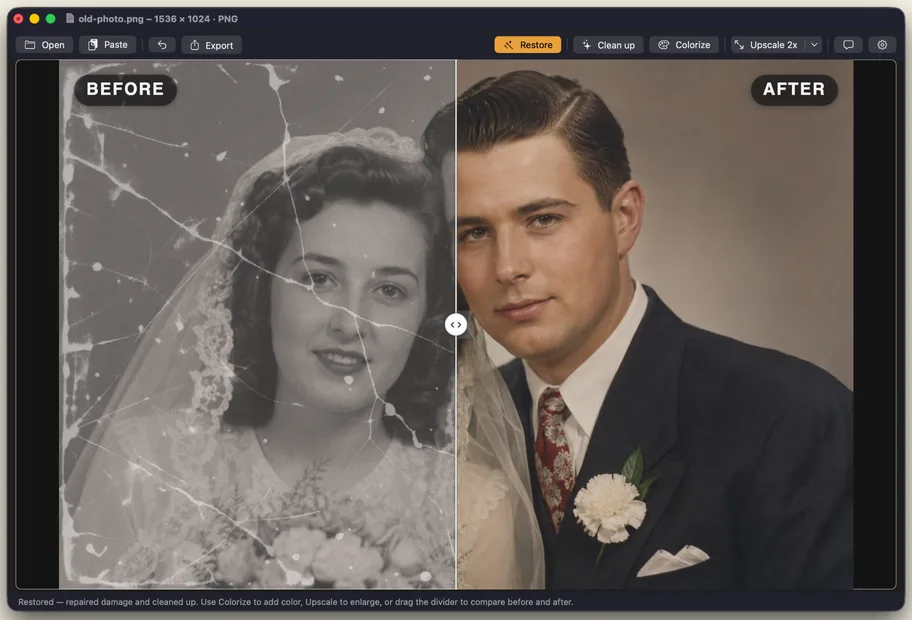
To restore an old photo on a Mac, get a sharp scan or phone photo of the print, open it in Restore Old Photos, press Restore (⌘R) to repair cracks and scratches, optionally Colorize (⌘2) and Upscale (⌘4), then Export (⌘S). Every step runs on your Mac with Core ML, so the photo is never uploaded.
What you need
- A Mac with macOS 14 Sonoma or later.
- About 500 MB of free space for the AI models. Each model downloads the first time you use its tool, then works offline.
- The old photo as a file: JPEG, PNG, TIFF, HEIC, BMP, GIF or WebP. A scan at 400 to 600 dpi gives the best result. See how to scan old photos.
- Restore Old Photos from the Mac App Store, free to download.
Step by step
- Open the photo. Choose Open (⌘O), drag the file onto the window, or copy a photo and paste it (⌘V). Paste is handy for pictures already open in Photos or Preview.
- Press Restore (⌘R). Restore finds cracks, tears, scratches, dust and stains with a scratch-detection model, fills them in with an inpainting model, and then removes grain. The first run downloads the models.
- Compare. Drag the divider across the photo to see before and after. Undo (⌘Z) steps back if you want to try a different order.
- Colorize, if the photo is black and white (⌘2). Colorize adds natural skin tones and colors. Run it after Restore, so the colors are not painted over cracks. Read what AI colorization can and cannot know.
- Upscale for printing (⌘3 for 2x, ⌘4 for 4x). Upscale sharpens faces and enlarges small prints. Do it last, because it multiplies the pixel count of every later step.
- Export (⌘S). Pick PNG to keep every detail, or JPG for a smaller file with a quality slider. JPG export keeps the original date taken and camera information.
Which tool fixes which problem
| Problem in the photo | Tool | Shortcut | Free? |
|---|---|---|---|
| Cracks, tears, creases, scratches, dust spots, stains | Restore | ⌘R | 1 free run, then Pro |
| Grain, scanner noise, JPEG blocks, a soft look | Clean up | ⌘1 | Free, unlimited |
| Black and white or faded sepia | Colorize | ⌘2 | 1 free run, then Pro |
| Too small to print, blurry faces | Upscale 2x / 4x | ⌘3 / ⌘4 | 2x free; 4x 1 free run, then Pro |
Pro costs $19.99 once (Lifetime), $14.99 a year or $4.99 a month on the Mac App Store, in US dollars.
Is it private?
Yes. Restore Old Photos runs inside the macOS App Sandbox and only reads the files you open. It does all of its work on your Mac's CPU, GPU and Neural Engine, so no photo is uploaded, stored in a cloud or used to train AI. The app has no account and no login. It only connects to the internet to download the models, to send an anonymous count of photos processed, and to send feedback if you write to us. The privacy policy lists every field.
Tips for better results on a Mac
- Start from the best copy. Restore cannot invent detail that was never captured. A sharp 400 to 600 dpi scan beats a small, blurry phone photo every time.
- Crop out the frame or album page first in Preview or Photos, so the AI works only on the picture.
- Restore before Colorize, Upscale last. This order keeps cracks from being colored in and keeps the file a manageable size until the end.
- Keep the original. Export to a new file name, so you can always go back to the untouched scan.
Try it on your own photos
Free to download. Clean up and Upscale 2x are free forever, and you get one free run of Restore, Colorize and Upscale 4x.