 Restore Old Photos
How to restore old photos on Windows 10 and 11
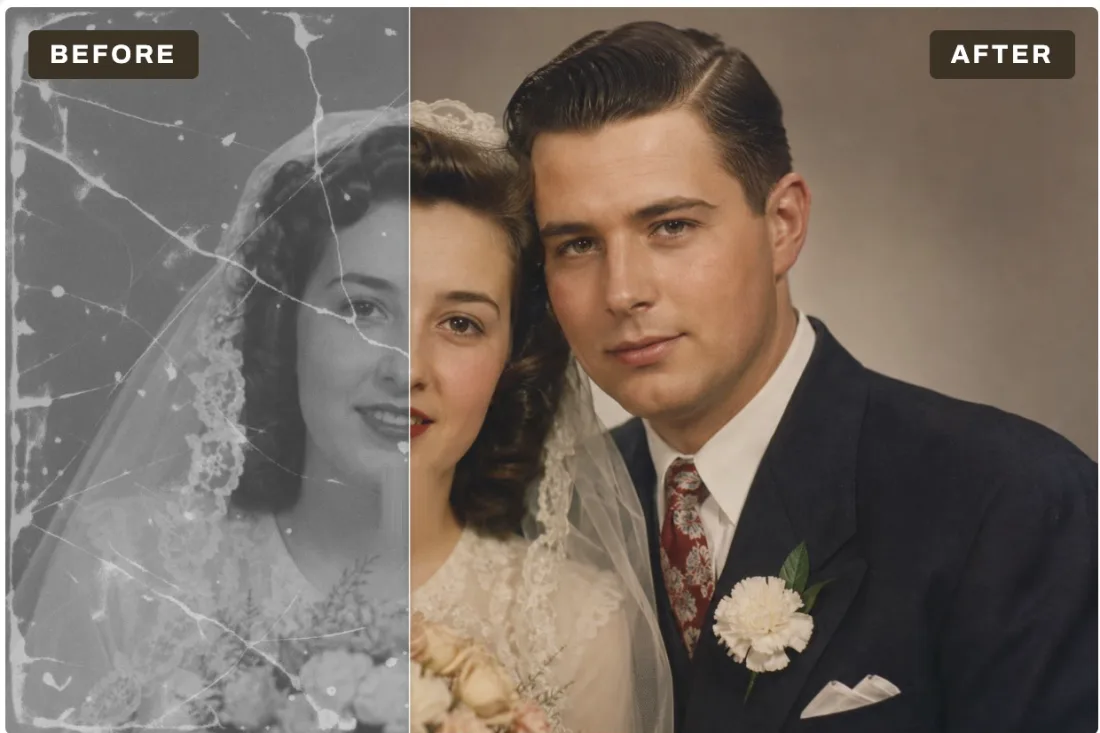
To restore an old photo on Windows, scan or photograph the print, open it in Restore Old Photos from the Microsoft Store, click Restore to repair cracks and scratches, add Colorize or Upscale if needed, then Export with Ctrl+S. The AI runs on your PC's graphics card, so the photo never leaves your computer.
What you need
- Windows 10 version 1809 or later, or Windows 11.
- Any graphics card that supports DirectX 12 makes it fast. Without one, the app falls back to the CPU: every tool still works, just more slowly.
- About 500 MB of free space for the AI models, which download the first time you use each tool and then work offline.
- The photo as a file: JPEG, PNG, TIFF, BMP, GIF or WebP. See how to scan old photos for the best input.
- Restore Old Photos from the Microsoft Store, free to download.
Step by step
- Open the photo. Click Open (Ctrl+O), drag the file onto the window, or paste a copied image (Ctrl+V).
- Click Restore. It finds cracks, tears, scratches, dust and stains, fills them in, and then removes grain. The first run downloads the models.
- Compare. Drag the divider to see before and after. Undo (Ctrl+Z) steps back.
- Clean up a grainy photo. If the photo is not damaged, just noisy or blocky from JPEG compression, Clean up alone is often enough, and it is free.
- Colorize a black and white photo. Colorize adds natural skin tones and era-appropriate colors. Read what colorization can and cannot know.
- Upscale last. Choose 2x or 4x to sharpen faces and enlarge a small print for framing.
- Export (Ctrl+S). PNG keeps every detail. JPG makes a smaller file with an adjustable quality.
Which tool fixes which problem
| Problem in the photo | Tool | Free? |
|---|---|---|
| Cracks, tears, creases, scratches, dust spots, stains | Restore | 1 free run, then Pro |
| Grain, scanner noise, JPEG blocks | Clean up | Free, unlimited |
| Black and white or faded sepia | Colorize | 1 free run, then Pro |
| Too small to print, blurry faces | Upscale 2x / 4x | 2x free; 4x 1 free run, then Pro |
Pro costs $19.99 once (Lifetime), $14.99 a year or $2.99 a month on the Microsoft Store, in US dollars. All three plans unlock the same tools.
Why run photo restoration on your own PC?
Most online restorers ask you to upload family photos to their server and often limit free use. Restore Old Photos uses ONNX Runtime with DirectML, so the models run on your own graphics card. Nothing is uploaded, there is no account, and once the models are downloaded it works with no internet connection. The only things the app sends are an anonymous count of photos processed and feedback if you choose to write. The privacy policy lists every field.
Tips for better results
- Use the best scan you can get. No AI can recover detail that was never captured. A 400 to 600 dpi flatbed scan beats a quick phone photo.
- Crop away borders and album pages before you start, in the Windows Photos app or any editor.
- Restore first, Colorize second, Upscale last. This keeps color off the cracks and keeps the file small until the final step.
- Export under a new name so the original scan stays untouched.
Try it on your own photos
Free to download. Clean up and Upscale 2x are free forever, and you get one free run of Restore, Colorize and Upscale 4x.